Viewing Order Expiry Dates & Batch Numbers in Shopify
There are several ways to view batch numbers and expiry dates assigned to an order from the order's page in the Shopify admin.
Admin Block
Adding the Expiration Dates block to the orders page:
-
Open your order in the the Shopify admin
-
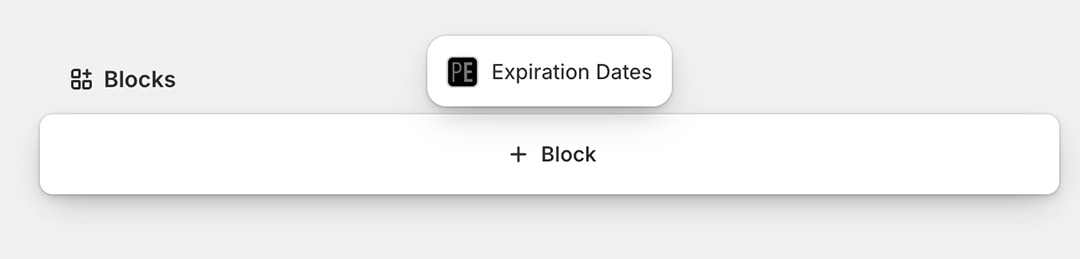
On the order's page scroll to the bottom and select "Add block"
-
Select "Expiration Dates" from the popup menu
-
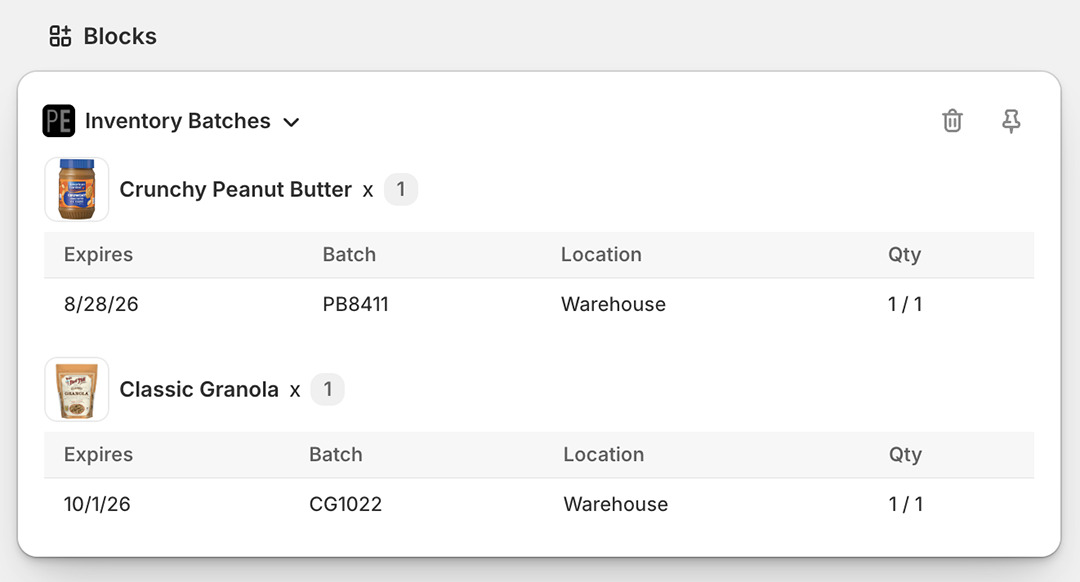
This will show the expiration dates assigned to the order's line items, if any. Note that only orders after September 11th, 2026 will have their dates shown:
-
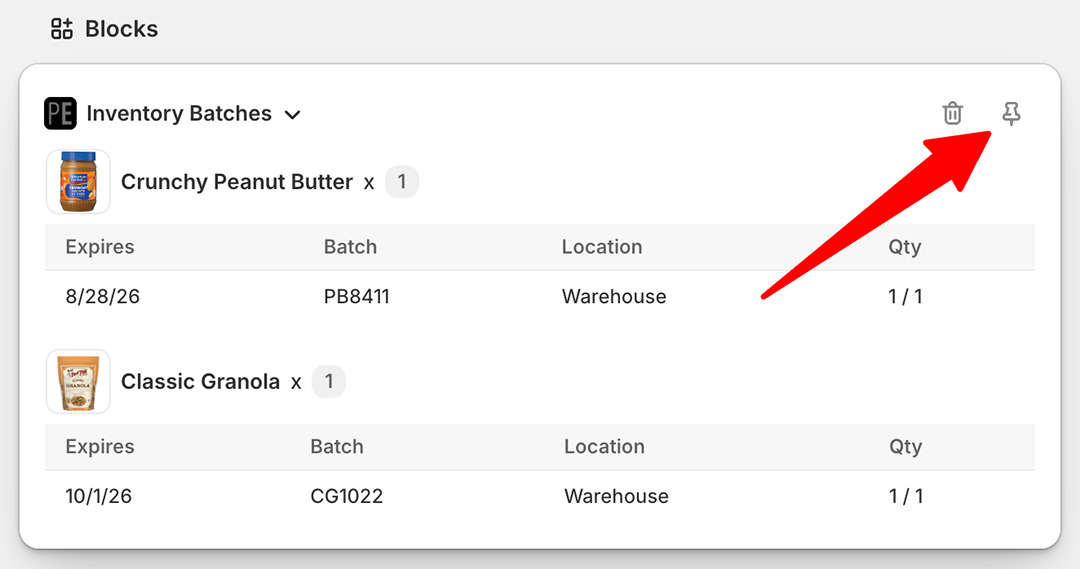
To make the block always appear on the order page click the pin icon:
Additional Details Section
Batch numbers can be added to the orders page under the Additional Details section:
- In the app's settings go to Orders tab
- Select "Create an order "additional details" entry with an order's inventory batches"
- Click the Update button to save
Inventory batches for new orders will now be added to the order's Additional Details section in the Shopify Admin:
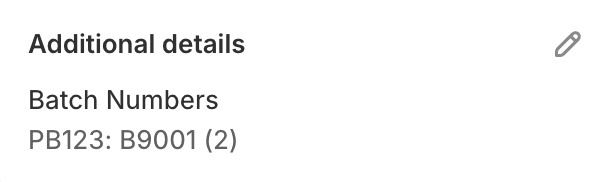
The following information is included:
PB123: the line item SKUB9001: the batch number assigned to the line item(2): the quantity
Viewing the Order in the App
To open an order's page in the app:
- Open your order in the Shopify Admin
- On the order's page select "More actions"
- Select "Expiration Dates"