Creating Labels in Multiple Languages
Products can have multiple labels. Each label has its own settings, including the language it appears in. This setting is the label's locale, which is a language/country combination.
For example, to display a label using Spanish for Spain the locale would be es-ES. Spanish for Mexico would be es-MX.
By default the label will inherit the locale of its format. A US Supplement Fact label will have a locale of en-US for American English.
Setting a Label's Locale
The first step to displaying a label in a different language is to change its locale.
-
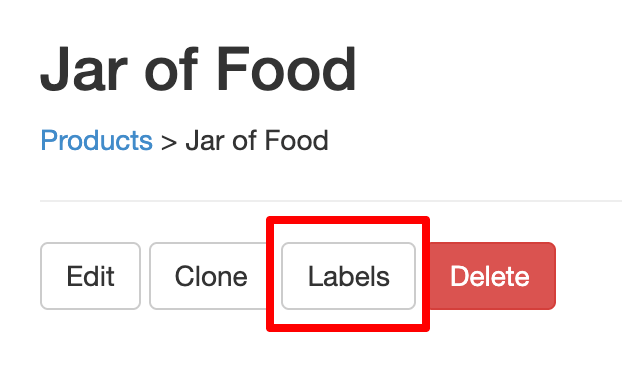
From the Product's page in the app select Labels:
-
Then select Edit for the desired label:

-
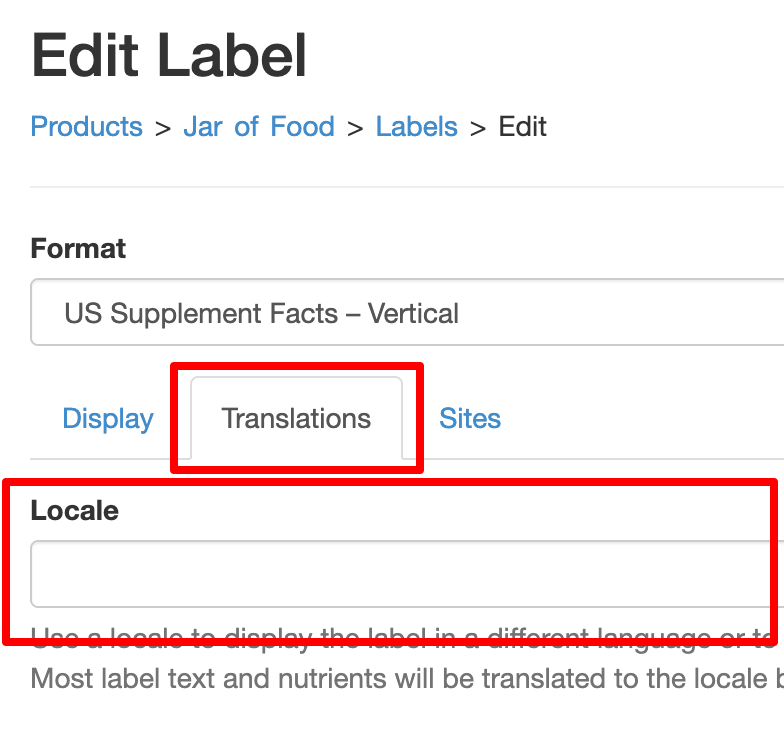
From the label's page select Translations. This will display the locale field:
-
Choose the desired locale. If you don't see the desired locale contact support and they will add it.
-
Click Update to save
Your label will now be displayed in the language of the chosen locale. The label's design will remain the same but the new locale causes the following changes:
- Un-editable text on the label will be changed, for example Per serving
- Nutrients defined by the system will be translated
- User-defined nutrients, ingredients, etc. will be translated if translations for them have been defined. See Translating Ingredients, Warnings Etc.
Now let's create a 2nd label. This will have a different locale and be translated into another language.
Translating Ingredients and Other Block Text
-
From the Product's page in the app select Labels:
-
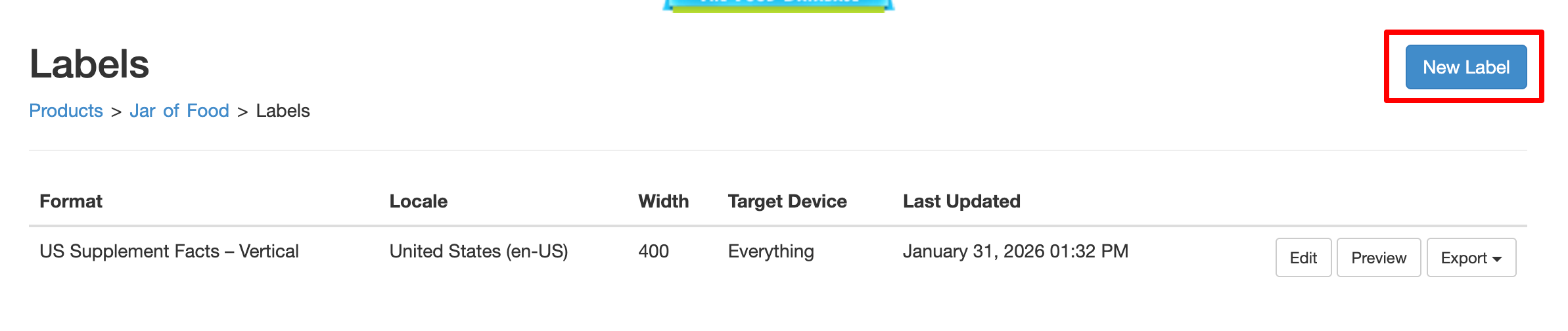
From the labels page select New Label:
-
By default the new label's format will be the same as the existing label. You can change it if you like.
-
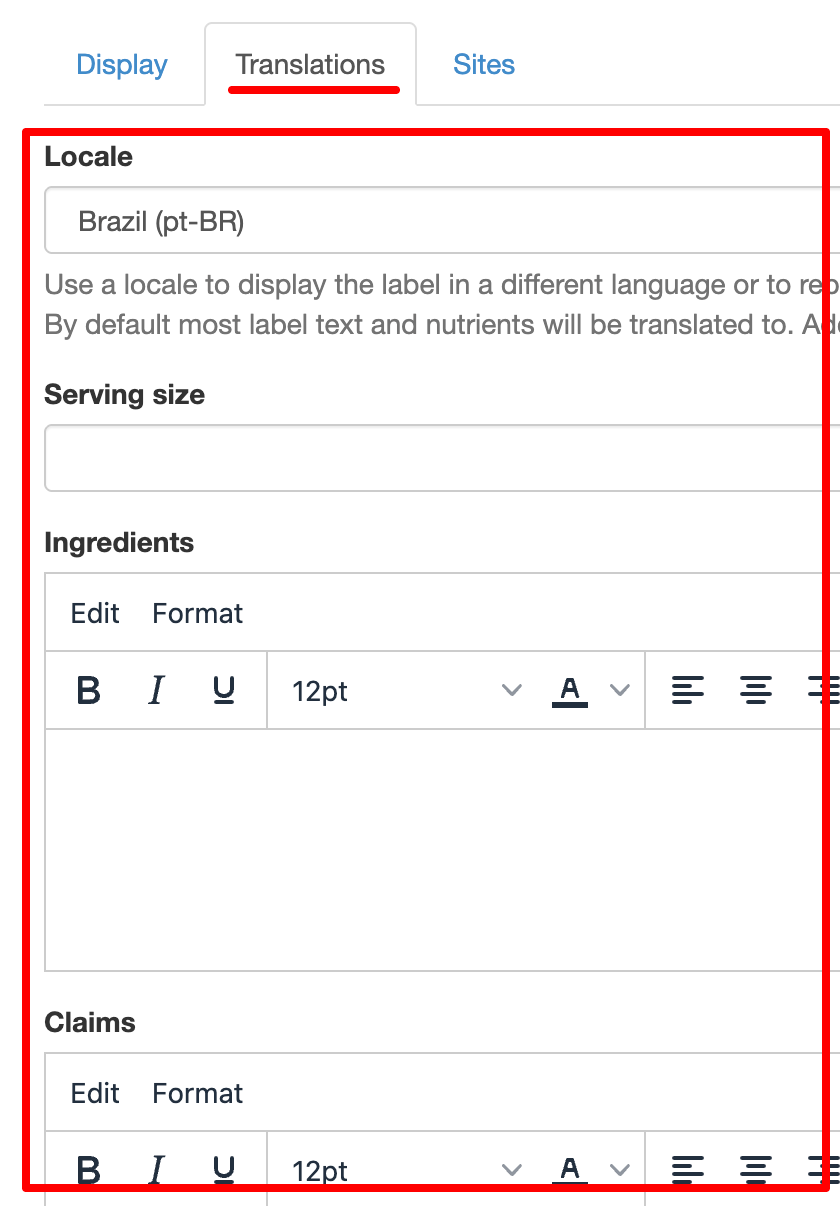
Select Translations and select the desired value from the locale field:
-
You can add translations for ingredients, warnings, footnotes, and more. These values will be used when displaying the label in the chosen locale. Text on the original label will not be affected.
-
Click Update to save
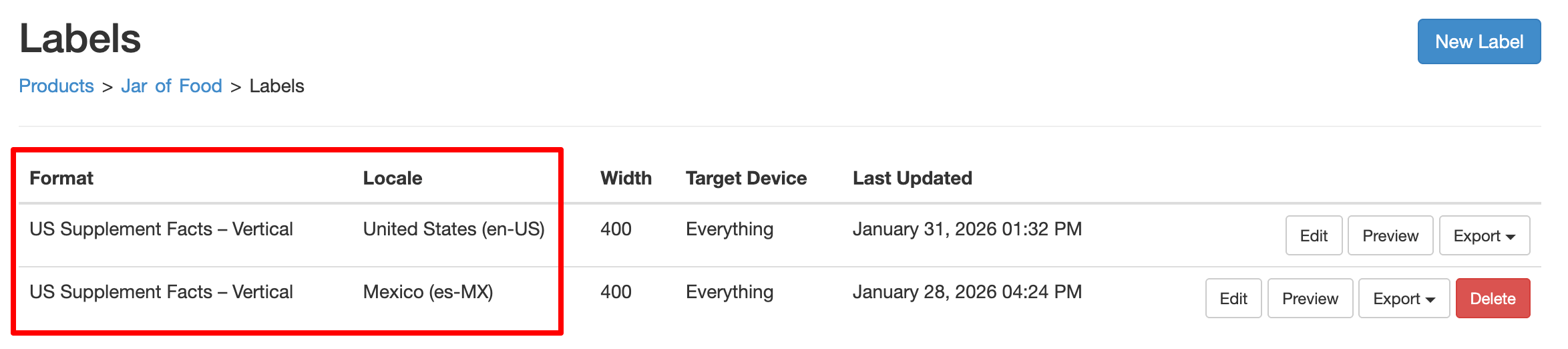
You now have 2 labels, each with their own locale:
Enabling Translations on Your Site
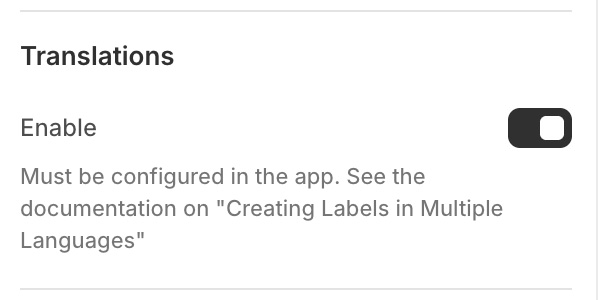
If you're using the Shopify theme editor you can enable translations by selecting Enable under in the Translations section:
If you're not using the Shopify Theme editor you can add the data-localize="true" attribute to the embed code's script tag. For example:
<div data-itsgot-user="1234" data-itsgot-label="9999"></div>
<script src="//itsgot.com/embed.js" data-localize="true" async></script>
By default the user will see the language that matches the page's lang attribute on the html tag. This works with most sites.
Contact support if you need to use a different method.