Importing Products in Bulk
To import your products in bulk:
- Download our CSV template
- Add your product and nutrition data
- Go to the Product Import page and upload your CSV file
- Note that the sample spreadsheet does not contain all possible nutrients, see Adding Nutrients to the Spreadsheet
The CSV template requires values for the following columns:
-
Label Format Must be one of:
ca:legacy:nutrition_facts:verticalde:eu:nutrition_facts:verticaldk:eu:nutrition_facts:verticalse:eu:nutrition_facts:verticaluk:eu:nutrition_facts:verticalus:2016:nutrition_facts:tabularus:2016:nutrition_facts:verticalus:2016:nutrition_facts:emblemsus:legacy:nutrition_facts:verticalus:legacy:supplement_facts:vertical_columnsus:legacy:supplement_facts:verticalus:2016:supplement_facts:vertical_columnsus:2016:supplement_facts:vertical
-
A product identifier column Must be one of: Product ID/Variant ID or SKU. These will be used to associate the product with a matching Shopify product.
Adding Nutrients to the Spreadsheet
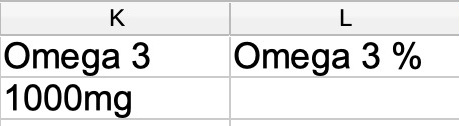
Any nutrient can be imported. For example, to import Omega 3 with a quantity of 1000mg you'd add an Omega 3 column with a value of 1000mg for the given product's row. If you wanted to specify a percent allowance you'd add a column Omega 3 %:
Nutrition Data With Multiple Servings
Use a Comments column to separate sets of nutrition data for the same product. For example, if you have Per serving and Per 100g nutrition data you'd delimit each data set using Comments columns:
