Borders, Colors, and Indentation
info
You can set default values for these on your account's settings page
Setting the Text Color
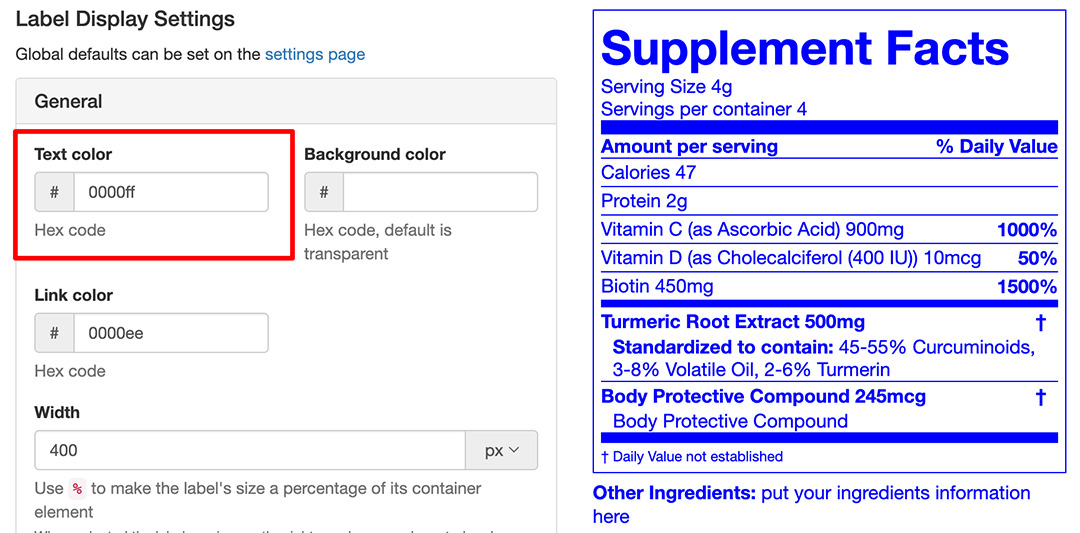
The color of the label and its text can be set from the Label Display Settings section. Individual text blocks and nutrients can also have their color set.
- Find the desired product and click the "Edit" button
- Go to the Label Display Settings section
- Select "General"
- Fill-in the "Text color" field with the desired color's hex color code:
- Click Update
- This will change all of the label's text to the selected color
Text Blocks
- From the product's page go to the desired text block
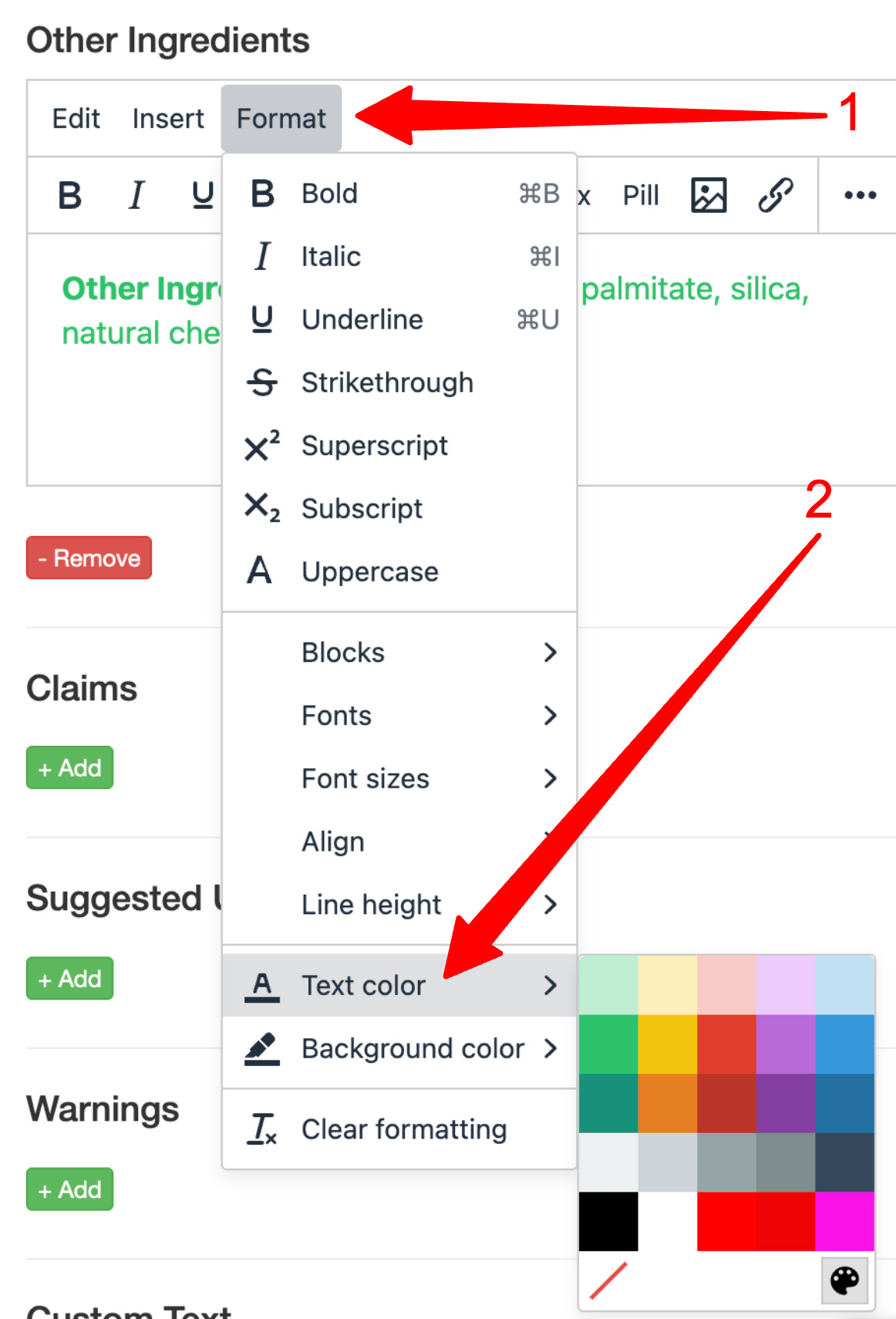
- From the block's Format menu select "Text color"
- You can choose a predefined color or a specific color by selecting the pallet icon:
- Click Update
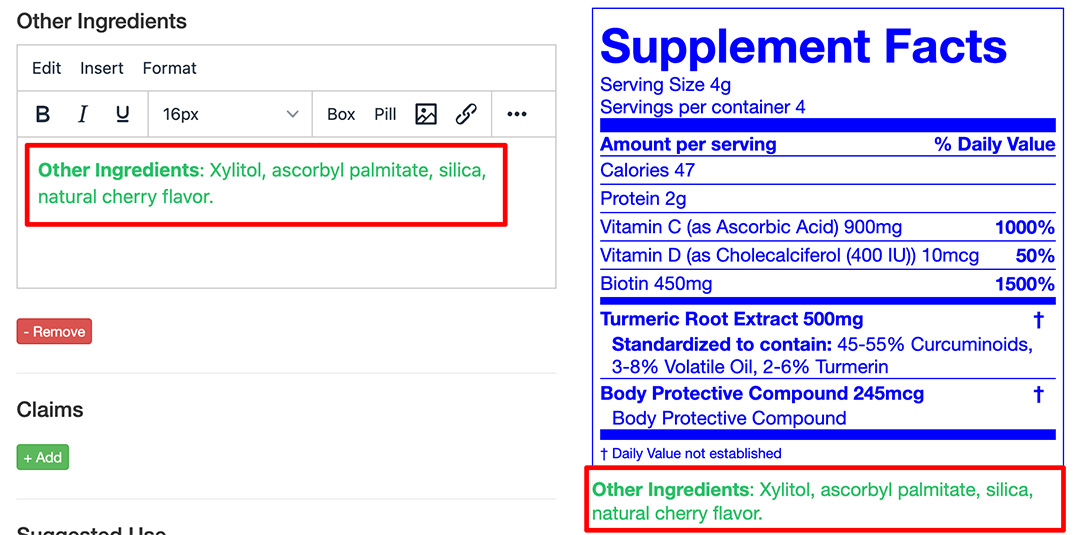
- The color will only be applied to the text block. The label's default color will not be affected:
Nutrients
Use a nutrient's display settings to change its color:
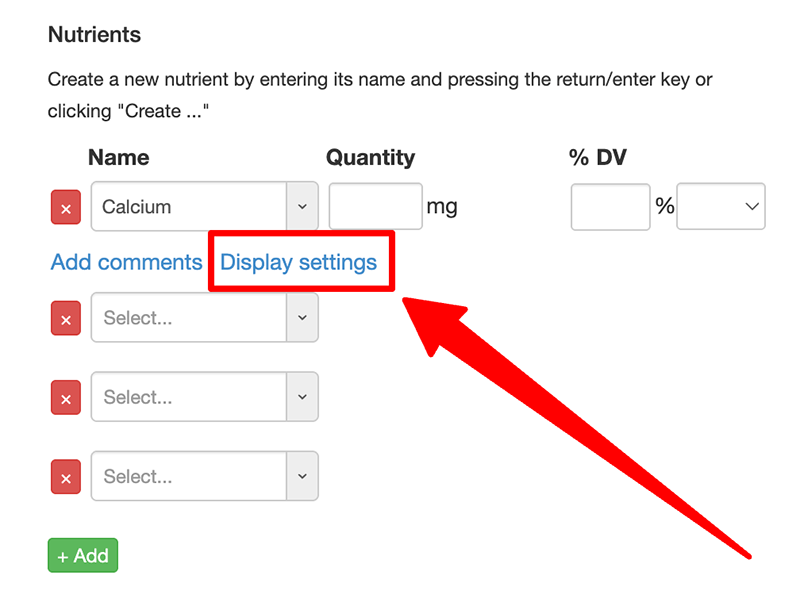
- From the Display Settings popup find the Style section
- Fill-in the "Text color" field with the desired color's hex color code
- Click Ok
- Click Update
Setting the Background Color
By default the background color is transparent to match your site's background. A background color can be set from the Label Display Settings section. Individual text blocks and nutrients can also have their background color set.
- Find the desired product and click the "Edit" button
- Go to the Label Display Settings section
- Select "General"
- Fill-in the "Text color" field with the desired color's hex color code
- Click Update
- This will change all of the label to use the selected color for its background