Automatically by Adding Our Liquid Snippet to Your Theme
The best way to add product labels to your Shopify site is via the Shopify theme editor. The instructions here are only for cases that cannot be handled by the theme editor.
This is a two step process: 1) add our Liquid code snippet to your theme and 2) render the snippet in the location you want the label displayed.
Adding Our Snippet to Your Theme
- Go to the Shopify Admin
- Open your theme's code editor
- Add a new theme file
- Click on the snippets directory
- Click Add new snippet
- For file name use
itsgot-product-label-embed-code.liquid - Click Done
- This will open a new blank tab in the editor named
snippets/itsgot-product-label-embed-code.liquid - Copy the code from our Liquid snippet and paste it into the tab
- Click Save
- Click Add a new theme file again
- Click on the snippets directory
- Click Add new snippet
- For file name use
itsgot-product-label.liquid - Click Done
- This will open a new blank tab in the editor named
snippets/itsgot-product-label.liquid - Copy the code from our Liquid snippet and paste it into the tab
- Click Save
Displaying the Product Label
Once you've added our snippet to your theme the next step is to render it in the location you want the label displayed. This can be done from the Shopify Admin via the customize theme page.
- Go to Themes in the Shopify Admin
-
Find the theme you want to update and click Edit theme
-
In the theme editor, select Products then Default product (or whatever the desired template is)
-
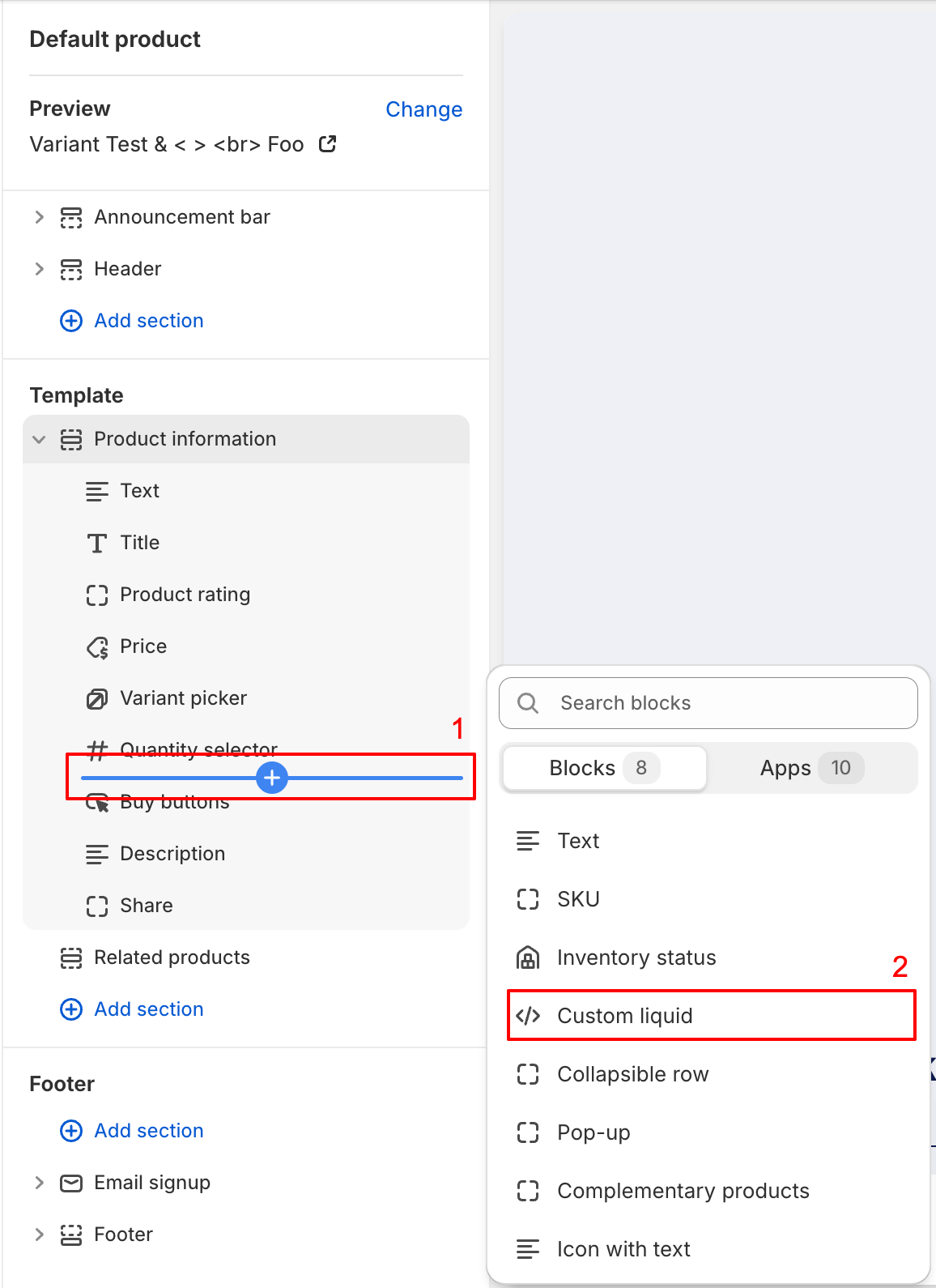
If you want to add the label to an existing section, click the add block button within that section and select Custom liquid or, if not available, HTML (note that the HTML block must support Liquid):
-
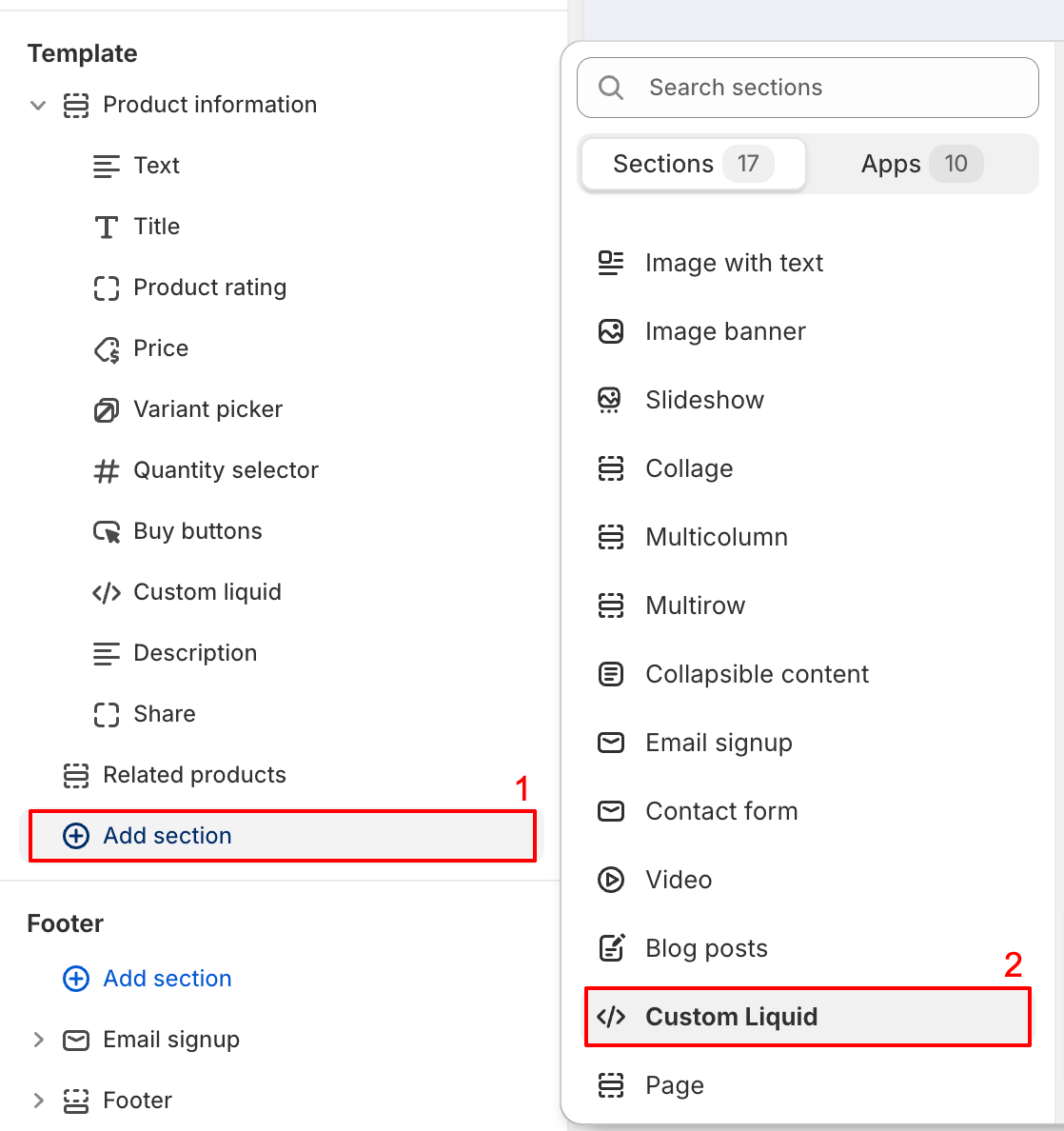
If you want to add the label to a new section, click the Add section button and select Custom liquid or HTML, whatever your theme provides:
-
If your theme does not have a Custom liquid nor HTML option, you must render the snippet in your theme manually. This can be done via the theme code editor. If you need assistance please contact support.
-
Click on the Custom liquid block or section you just added
-
In the Custom liquid (or similar) field paste the following code:
{% render "itsgot-product-label", product: product %}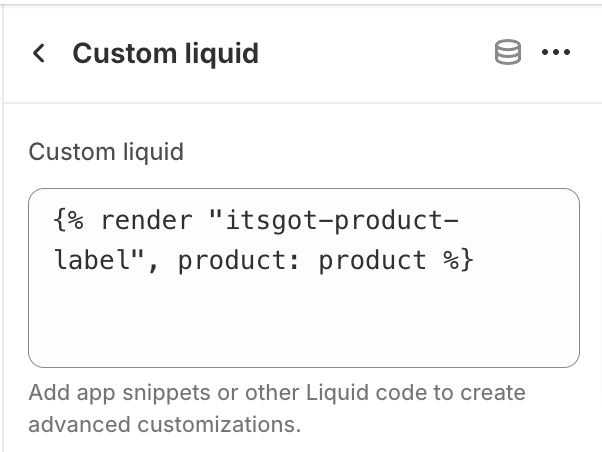
-
Click Save
Now current and future labels will appear automatically on the products page.