Label Embed Code
The label embed code is an HTML snippet that allows you to add a label to any page on your site.
To add a label using the embed code:
-
Create a product label. If the product already exists, locate it from the My Labels page and click on the product's name.
-
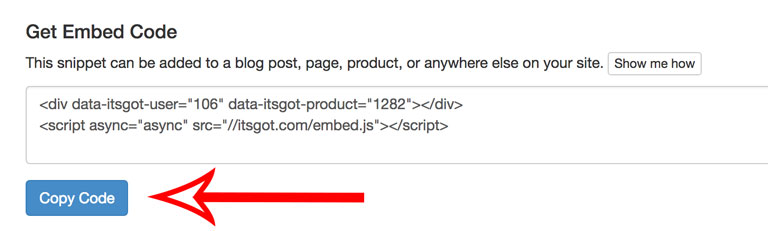
Click the Copy Code button to copy the embed code to the clipboard. This will allow you to paste the code into your site in a later step:
-
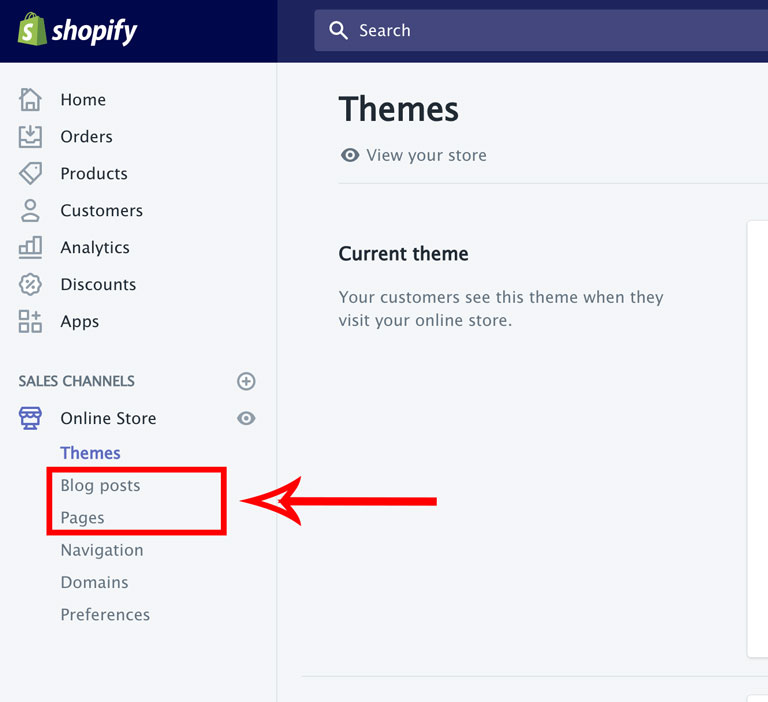
Select where you want to add your snippet. The screenshot below uses Blog Posts and Pages but these instructions apply to Collections and Products too:
-
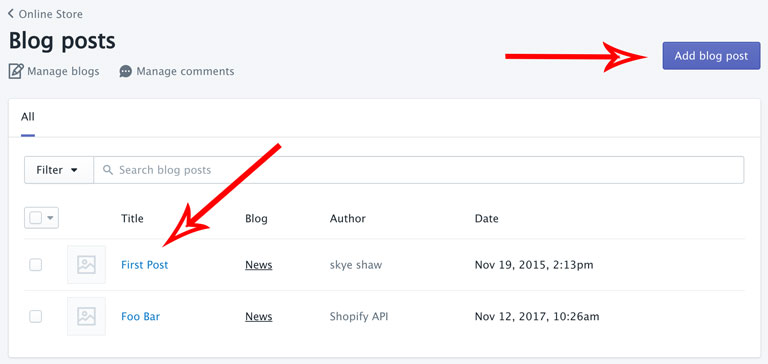
Select an existing blog post (or page, collection, or product) you'd like to add the label to. If the blog post does not exist add a new one:
-
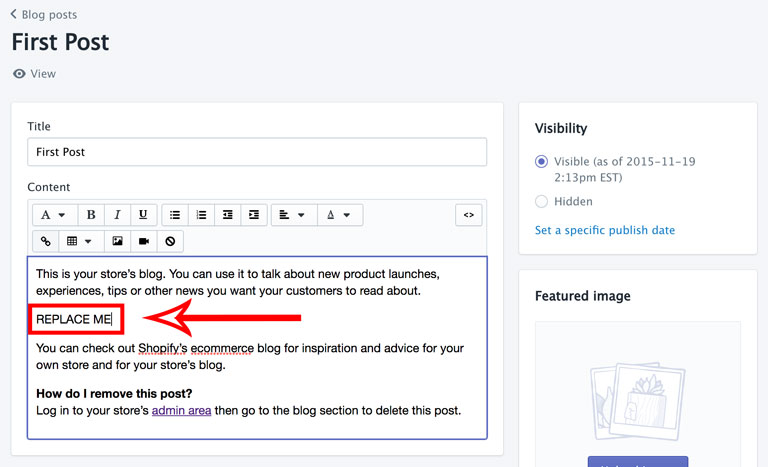
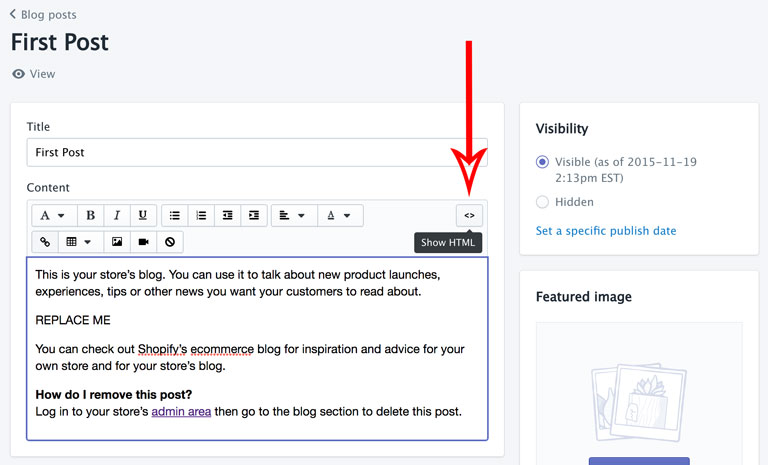
Find the location in the content area that you want your product label to be displayed in. Since you will be switching to HTML mode to insert the embed code, it's a good idea to insert some marker text that you can then replace. In this case we added the text REPLACE ME:
-
Click the button to edit in HTML mode:
-
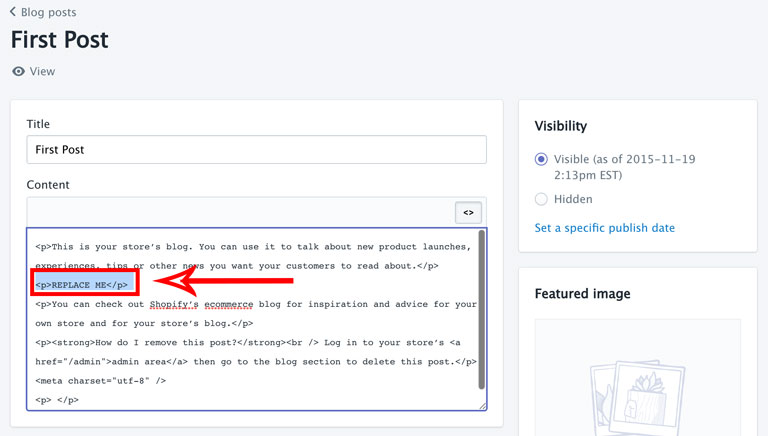
The Content area now shows HTML code:
-
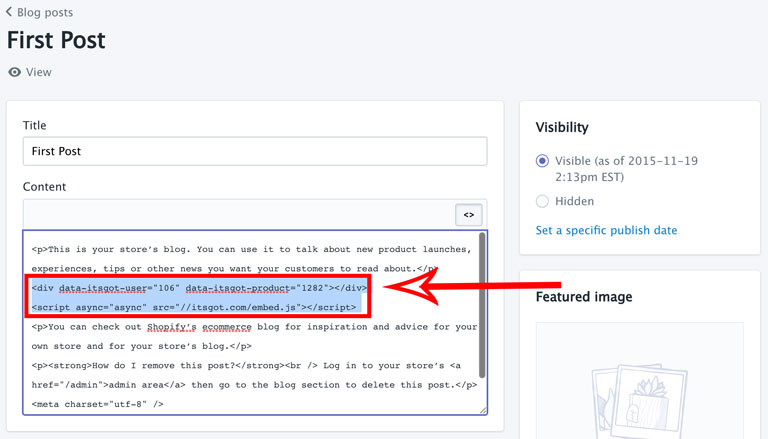
Remove the REPLACE ME text and paste in the embed code copied in step 2:
-
To complete, click the Save button:
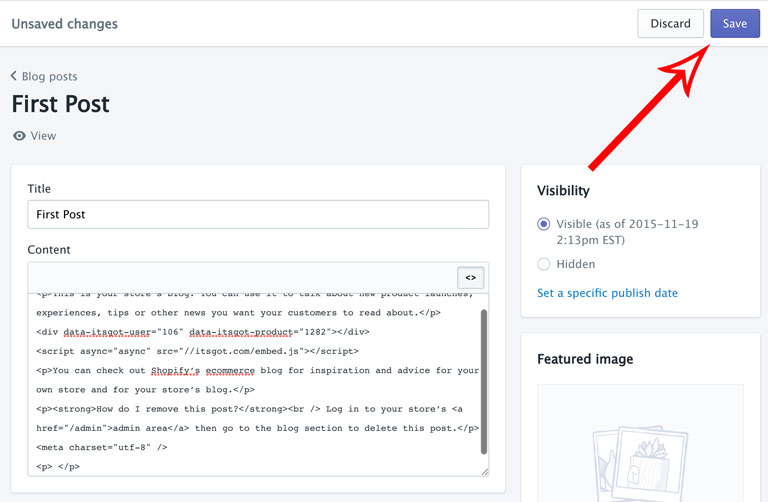
The product's label is now part of the blog post.